Try On Tattoos Before You Get Inked
Use AI to preview tattoo designs on your actual body before making the permanent commitment.
The biggest fear with tattoos isn't the pain — it's the permanence. What if it doesn't look how you imagined? What if the placement is wrong? What if the size is off? These "what ifs" have stopped countless people from getting the tattoo they wanted, or worse, led to regrettable decisions.
Enter AI tattoo try on technology. Now you can see exactly how a tattoo will look on your body before a single drop of ink touches your skin. It's not perfect — nothing replaces the real thing — but it's close enough to prevent major mistakes and build confidence in your decision.
What Is AI Tattoo Try On?
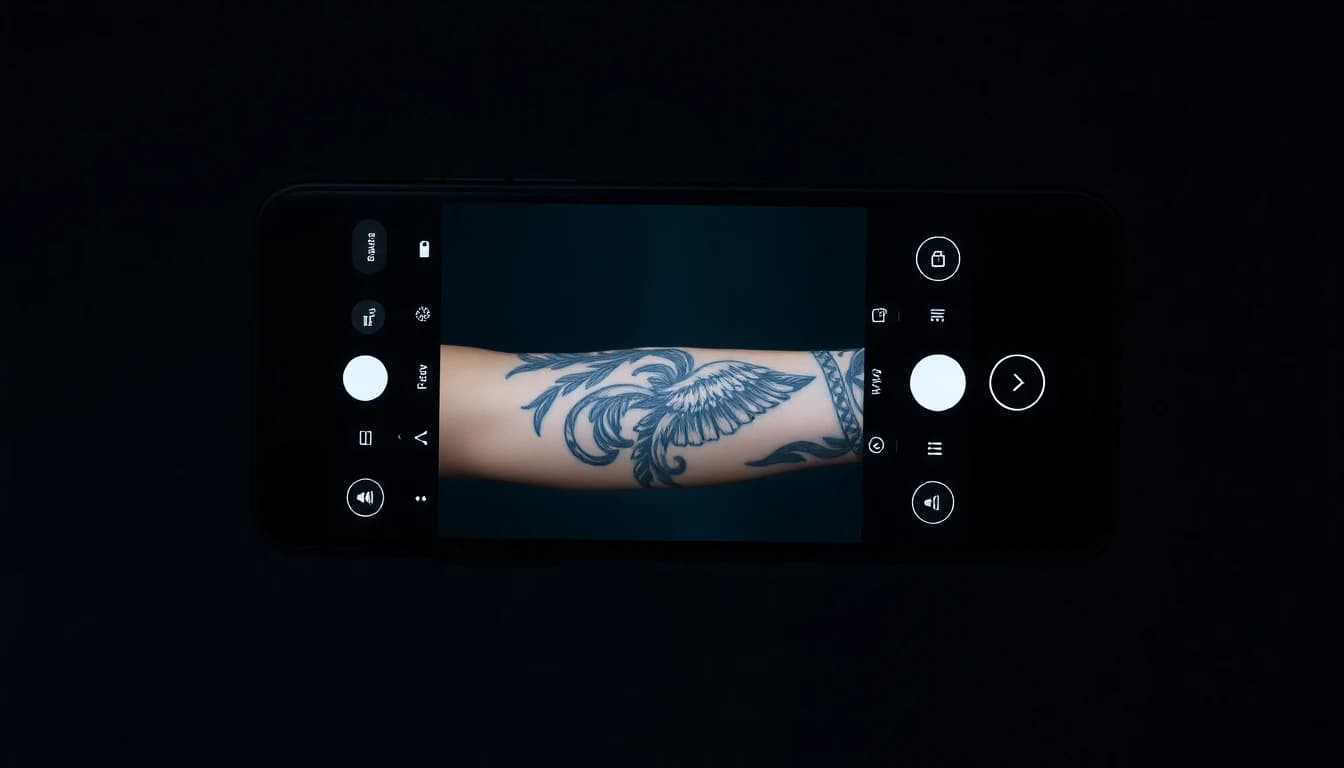
An ai tattoo simulator uses augmented reality (AR) and artificial intelligence to overlay tattoo designs onto photos or live video of your body. Point your phone camera at your arm, and you see a tattoo there — positioned, scaled, and rendered to look realistic.
This isn't just a static image pasted on top. Modern tattoo preview apps understand body contours, skin tone, and how tattoos naturally wrap around limbs. The result is surprisingly convincing and incredibly useful for planning.
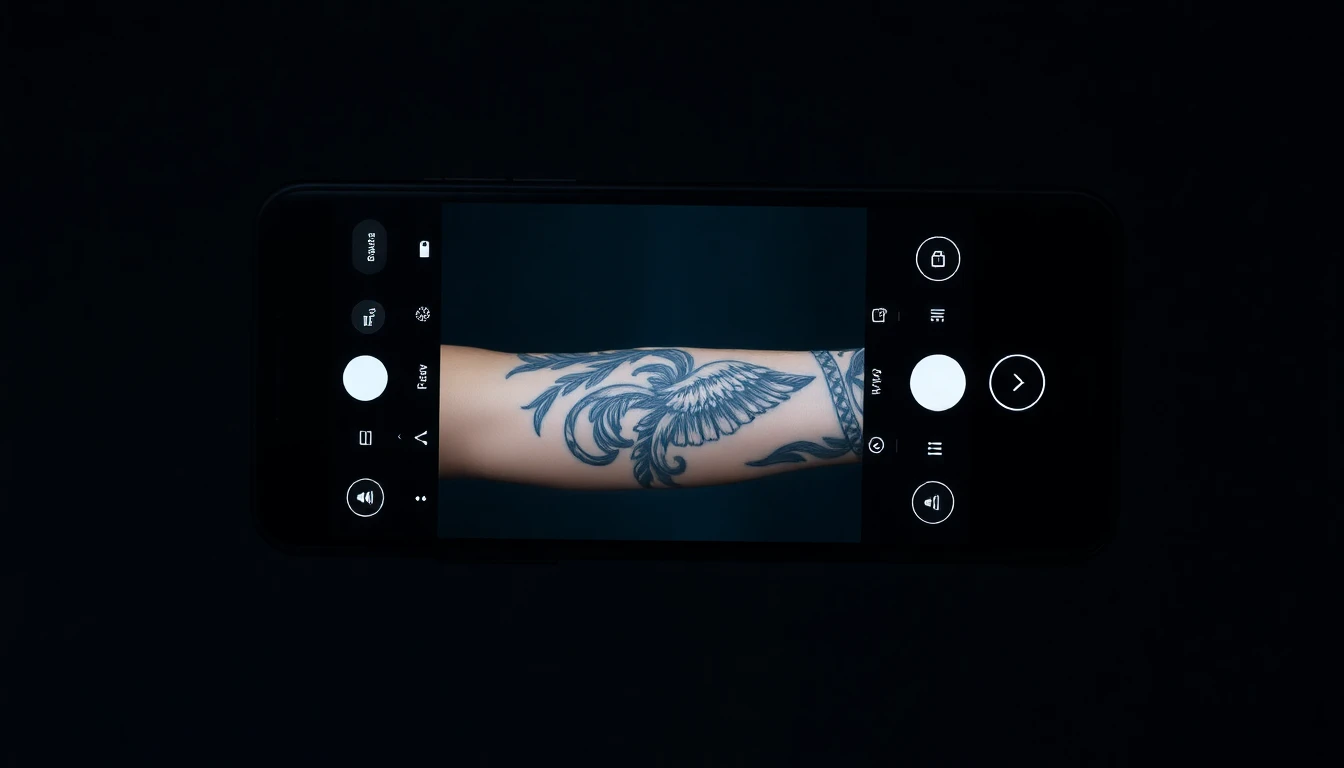
The technology has evolved rapidly. Early tattoo preview tools were glorified photo editors — now they're sophisticated AR experiences that track your movement and adjust the tattoo in real-time. According to research on tattoo regret psychology, most regret stems from poor planning rather than changing tastes. Preview tools directly address this.
Why Previewing Your Tattoo Actually Matters
Visualizing a tattoo in your head is different from seeing it on your body. Here's why ai tattoo on body preview changes the game:
Size perception is tricky. That design that looked perfect on paper might be too small to read on your forearm or too large for your wrist. Preview tools show you actual scale on your actual anatomy.
Placement affects everything. A tattoo shifts when muscles move, when skin stretches, when your body is in different positions. Seeing it "live" reveals how placement affects the design in motion.
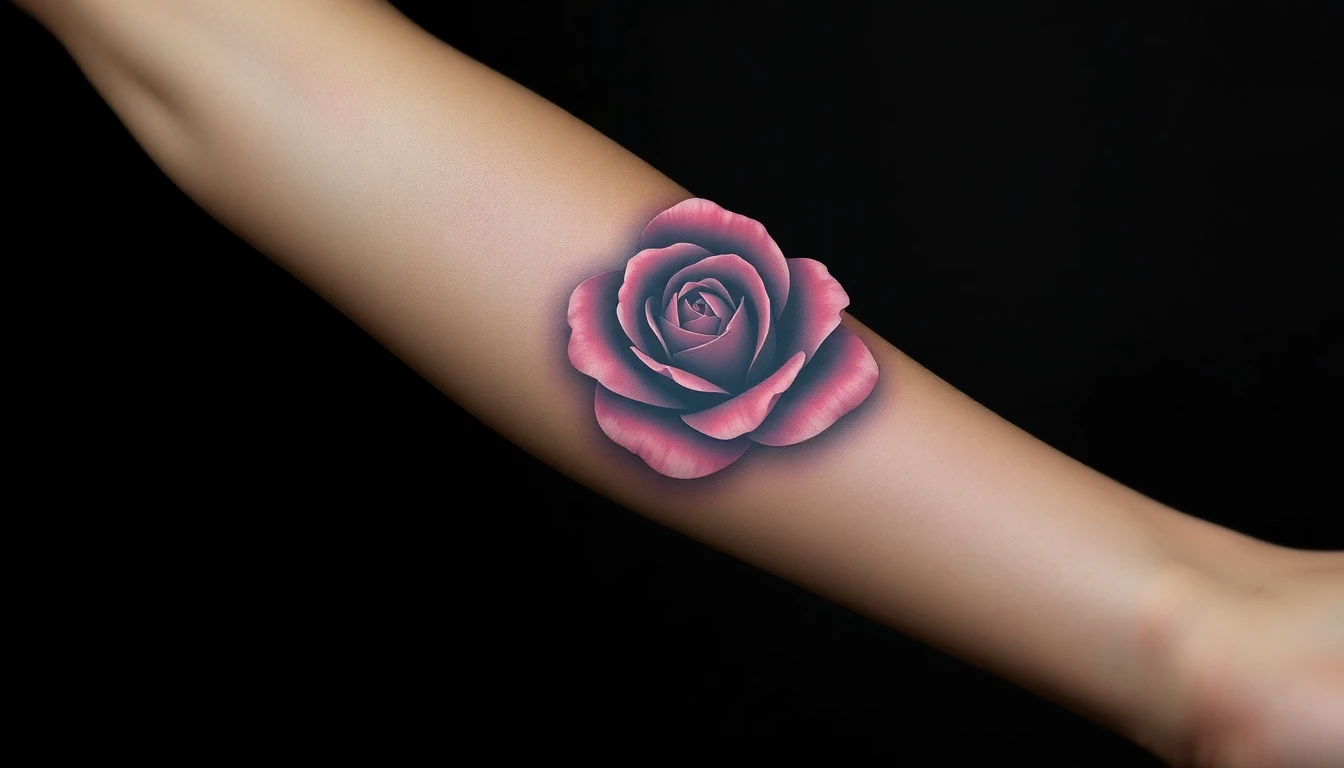
Skin tone changes perception. The same design looks different on different skin tones. Preview on YOUR skin, not a model's.
Context matters. How does this tattoo work with your existing ink? With your body shape? With the clothes you typically wear? Virtual tattoo try on puts it in context.
Decision confidence. Seeing the design on your body — even digitally — helps you know if you're making the right choice. That gut feeling when you see it is valuable data.
How to Use AI Tattoo Try On Effectively
Getting the most out of ai tattoo on me features requires some technique. Here's how to preview like a pro:
Start with your design. You need a tattoo design before you can preview it. Create custom designs with text prompts or convert photos to tattoo art first, then move to preview.
Use good lighting. The AR tracking works better in well-lit environments. Natural light is ideal. Avoid harsh shadows that might confuse the body detection.
Try multiple positions. Don't just look at your arm hanging at your side. Bend it, flex it, rotate it. See how the tattoo moves with your body.
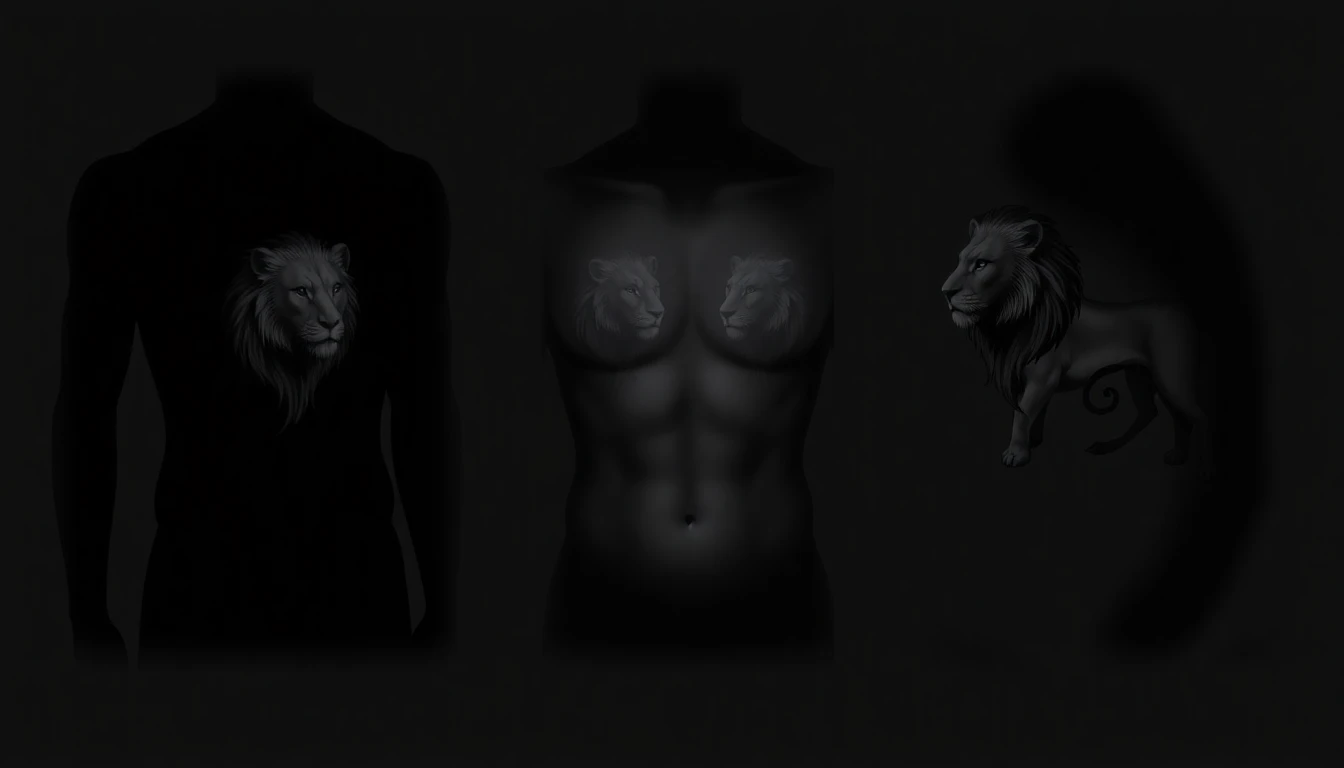
Test different sizes. Most ai tattoo simulator tools let you scale designs. Try bigger than you think, then smaller. The right size often isn't what you initially imagined.
Consider visibility. Preview with clothes you typically wear. Will this tattoo show in a work shirt? Does it peek out from short sleeves the way you want?
Screenshot everything. Save previews you like. You'll want to reference them later, share with friends for opinions, and bring to your tattoo artist.
Testing Different Placements
One of the most valuable uses of virtual tattoo try on is comparing placements. The same design reads completely differently on different body parts.
Forearm: Visible, easy to show off, easy to cover with long sleeves. Preview both inner and outer forearm — they're different canvases.
Upper arm/bicep: More private, shows in short sleeves. Consider how the design wraps around the curved surface.
Shoulder: Usually hidden, larger canvas, less distortion from muscle movement.
Wrist: Very visible, limited space, design needs to work at small scale.
Chest: Private, flat(ish) surface, can accommodate larger designs.
Back: Maximum canvas but you can't easily see it yourself. Preview is especially valuable here.
Leg: Thigh, calf, ankle — each has different visibility and canvas characteristics. Understanding tattoo placement helps you make informed decisions.

The goal isn't to find the "objectively best" placement — it's to find what works for YOUR body, YOUR lifestyle, and YOUR aesthetic preferences.
What Try On Can't Tell You
Let's be honest about limitations. AI tattoo try on is powerful, but it's not perfect:
Pain isn't simulated. Some areas hurt more than others. Preview doesn't tell you how it'll feel getting tattooed there.
Healing varies. How a tattoo heals depends on the location. Preview shows the fresh result, not how it'll look after healing.
Aging isn't shown. Tattoos change over time. Fine lines blur, colors fade, skin wrinkles. What looks good now might not work in 20 years.
3D isn't 2D. AR is impressive but still a 2D screen showing a 3D body. The real thing will look different in person, in different lighting, from different angles.
Artist interpretation. Your tattoo artist will adapt your design. The final tattoo might differ from your preview based on their expertise and technique.
Use preview as a planning tool, not a guarantee. It gets you most of the way to certainty, but leave room for the artistry of the actual tattoo process.
From Preview to Appointment
Once you've used tattoo preview app features to find a design and placement you love, here's how to move forward:
Save your best previews. Create a folder of screenshots showing your preferred design, size, and placement. Multiple angles help.
Share with your artist. Bring these previews to your consultation. They show exactly what you're envisioning — much better than trying to describe it.
Be open to adjustments. Your artist might suggest modifications based on their experience with how tattoos work on skin. The preview is a starting point, not a rigid requirement.
Request a stencil test. Before tattooing, artists place a temporary stencil on your skin. This is your final "preview" — your last chance to adjust placement before ink.
Trust the process. You've done the planning. You've previewed. You've consulted. Now let the art happen.
The gap between imagining a tattoo and seeing it on your body is where most regret lives. AI tattoo on body preview technology bridges that gap, turning "I hope it looks good" into "I know what I'm getting." That confidence is worth everything when you're making a permanent decision.
Ready to see your next tattoo before you commit? Generate your design first, then preview it on your body. The future of tattoo planning is here — use it.
See It Before You Ink It
Generate designs and preview them on your body. Know exactly what you're getting.


Written by
INK Editorial
Turn this idea into ink
Generate unique tattoo designs, preview placements, and export in HD. No guesswork — just better concepts.
Start designing freeMore reads
All articles
Are Free AI Tattoo Generators Actually Good?
The truth about free AI tattoo tools - what you actually get, what the catch is, and whether paying makes sense.

How to Describe Your Tattoo Idea to AI (And Get Great Results)
Master the art of writing prompts that translate your vision into stunning AI-generated tattoo designs.

Turn Your Photos Into Tattoo Designs
Learn how to transform your favorite photos into beautiful, ink-ready tattoo artwork using AI technology.